Perfect! You’re thinking like a data analyst already — treating learning as a project-based journey. This approach will not only help you learn R deeply, but also produce a polished portfolio piece. Let’s begin.
🎯 Project Goal
Analyze supermarket sales data to uncover customer trends, product performance, and store dynamics.
Final output: a clean R Markdown report / Shiny dashboard with insights and visuals.
🧭 Project Outline: Supermarket Sales Analysis
Each stage improves a core data skill — think of it like a real client project.
Step 1: Understand the Dataset
🔍 Goal: Become familiar with what’s inside.
-
Look at the column names: What do they represent? Which ones are categorical vs numeric?
-
Try
str()orglimpse()in R. -
How many rows? Any missing data?
-
Can you guess what each row represents — a single purchase, an invoice, a daily summary?
📌 Hint: Use unique(), summary() and check table() for categorical variables.
Step 2: Clean and Prepare the Data
🧹 Goal: Make the dataset analysis-ready.
-
Look for missing values or strange entries (e.g., “0” as tax or total).
-
Convert date/time columns to proper
DateorPOSIXctformat. -
Ensure numeric columns are really numeric.
-
Consider feature engineering: e.g., extracting weekday, hour, or month.
📌 Hint: Use mutate(), as.Date(), and lubridate::wday().
Step 3: Exploratory Data Analysis (EDA)
📊 Goal: Discover patterns, answer business questions.
You’ll create a question list like:
-
What are the busiest times of day / week / month?
-
Which product lines bring in the most revenue?
-
Which city/store performs best?
-
Any interesting trends in payment method or customer type?
Start simple:
-
Count plots for categories (bar charts)
-
Histograms or density plots for totals
-
Boxplots for comparing revenue across groups
📌 Hint: Use ggplot2 + dplyr. Think: group_by() → summarise() → ggplot().
Step 4: Segment the Customers
🧠 Goal: Understand different customer behaviors.
Choose one or two segmentation logics:
-
By customer type (member vs normal)
-
By spending pattern
-
By purchase frequency (daily, weekday/weekend)
Can you calculate metrics like:
-
Average purchase amount per group?
-
Most popular product line per customer type?
📌 Hint: Use facet_wrap() to split plots. Try grouping by customer and summarizing.
Step 5: Build a Dashboard or Report
📦 Goal: Communicate your findings.
You now translate analysis into a portfolio artifact:
-
R Markdown report: Clean layout with intro, methods, plots, insights.
-
Shiny App (optional): Interactive dashboard with filters and charts.
-
Add narrative! Why is this insight valuable?
📌 Hint: Structure your markdown with ##, include charts, use kable() for tables.
Step 6: Polish for Portfolio
📝 Goal: Make it readable, beautiful, and shareable.
-
Add a project title, description, and motivation.
-
Reflect briefly on: what you learned? what surprised you?
-
Export as HTML/PDF (or deploy Shiny).
-
Optional: Upload to GitHub or create an Obsidian note for your project log.
🧱 Skills You’ll Practice
-
Tidyverse (
dplyr,ggplot2,lubridate) -
Data cleaning
-
EDA
-
Data storytelling
-
Report creation or dashboarding
Step 1: Understand the Dataset
1.1 Check the structure
library(tidyverse)
df <- read_csv("SuperMarket Analysis.csv")
head(df)
glimpse(df)
str(df)
names(df)
view(df)
dim(df)
1.2 Any obvious issues?
summary(df)
duplicated(df)
summary(is.na(df))
1.3 Peek into Date and Time
sapply(df, class)
library(lubridate)
unique(df$Date)
df <- df %>%
  mutate(Date = mdy(Date))
summary(df$Date)
Step 1 Summary:
- Dataset has 1000 rows and 17 columns.
- Key columns and their types:
- Categorical: City, Gender, Customer type, Product line, Payment
- Numerical: Unit price, Quantity, Tax, Total, Rating
- Date/Time: Date, Time
- No missing values.
- No duplicated rows.
1.4 🤔 What does “parsing Date” mean?:
Analogy:
Imagine your Date column is like a string saying "12/01/2024" — it looks like a date, but R treats it as just text. Parsing is the act of telling R:
🗣️ “Hey, this is not just text — this is a real calendar date!”
So R will convert it into a Date class object. Once it’s parsed, you can:
-
Extract month, weekday, year using
lubridatelikemonth(),wday() -
Sort data by date
-
Group by week/month
-
Make time-series plots
🧩 How to Check if It Needs Parsing
You can run this:
sapply(df, class)Then look at what R says for the "Date" column:
If you see:
-
"character"→ ✅ Yes, you need to parse it -
"factor"→ ✅ Also yes — first convert to character, then parse -
"Date"→ ❌ No parsing needed, already done
✅ How to Parse
If needed, use lubridate::dmy() or mdy() depending on the format.
library(lubridate)
df <- df %>%
  mutate(Date = dmy(Date))  # or mdy(Date) if month is first
To figure out whether to use dmy() or mdy(), just look at the actual values:
-
"12/01/2024"→ if it means 12 Jan → usedmy() -
if it means Jan 12 → use
mdy()
Step 2: Data Cleaning + Feature Engineering
2.1 Clean and Normalize Categorical Variables
❓ Are category names consistent?
Look at columns like City, Customer type, Gender, Product line, Payment.
df %>%
  count(City)

df %>%
  count(Payment)

df %>%
  count(Gender)

df %>%
  count(`Product line`)

df %>%
  count(`Customer type`)
2.2 Extract New Time-Based Features
df <- df %>%
  mutate(
    hour = hour(Time),
    day_part = case_when(
      hour < 12 ~ "Morning",
      hour >= 12 & hour < 18 ~ "Afternoon",
      hour >= 18 ~ "Evening"
    ),
    weekday = wday(df$Date, label = TRUE, abbr = FALSE),
    month = month(df$Date, label = TRUE, abbr = FALSE)
  )
2.2.1 In R’s mutate():
mutate(new_column = some_transformation)
This says:
“Create a new column called
new_column, and fill it with values calculated bysome_transformation.”
2.2.2 ✅ label = TRUE — return weekday name, not number
By default, wday() gives you numbers:
wday("2024-06-10")
#> [1] 2   (if week starts on Sunday → Monday = 2)
But when you do:
wday(date, label = TRUE)You get human-readable names like:
[1] "Mon" "Tue" "Wed" ...✅ abbr = FALSE — use full names instead of abbreviations
This controls how long the labels are:
| Setting | Output |
|---|---|
abbr = TRUE (default) | “Mon”, “Tue”, “Wed” |
abbr = FALSE | ”Monday”, “Tuesday”, “Wednesday” |
So if you want clean, full day names for plots or tables (e.g., for a dashboard), then:
wday(date, label = TRUE, abbr = FALSE)is perfect — it gives "Monday", "Tuesday", etc.
2.3 Create Summary Variables
Bucket customers into “Low”, “Medium”, “High” spenders
q3 <- quantile(df$Sales, probs = 0.75)
q1 <- quantile(df$Sales, probs = 0.25)
df <- df %>%
  mutate(
    price_per_item = Sales / Quantity, #Actual average paid per item (including tax).
    spending_category = case_when(
      Sales <= q1 ~ 'Low_Spender',
      Sales > q1 & Sales <= q3 ~ 'Medium_Spender',
      Sales > q3 ~ 'High_Spender'
    )

  )
df %>%
  count(spending_category)
Step 2 Summary:
- Checked categories: City, Gender, Payment, etc. — all consistent.
- Created time features: hour, weekday, month, day_part (Morning/Afternoon/Evening).
- Added summary vars:
- price_per_item = Sales / Quantity
- spending_category (Low / Medium / High) using quantiles.
- Data looks clean, no major outliers.
Step 3: Exploratory Data Analysis (EDA)
3.1 Understand Overall Sales Patterns
- What’s the distribution of
Sales?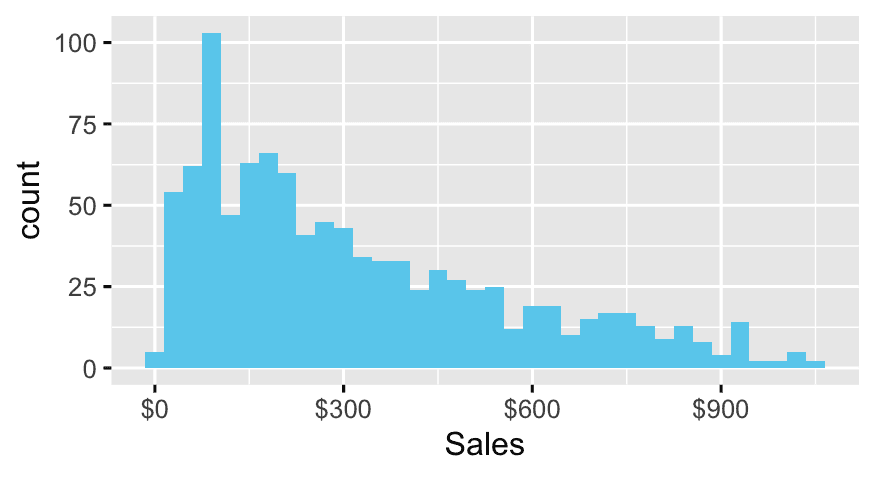
ggplot(df, aes(x = Sales)) +
  geom_histogram(binwidth = 30, fill = "skyblue") +
scale_x_continuous(labels = scales::dollar)- Which
Cityperforms best?
df %>%
  group_by(City) %>%
  summarise(
    avg_sales = mean(Sales, na.rm = TRUE)
  ) %>%
slice_max(avg_sales)- How does
Paymentmethod vary?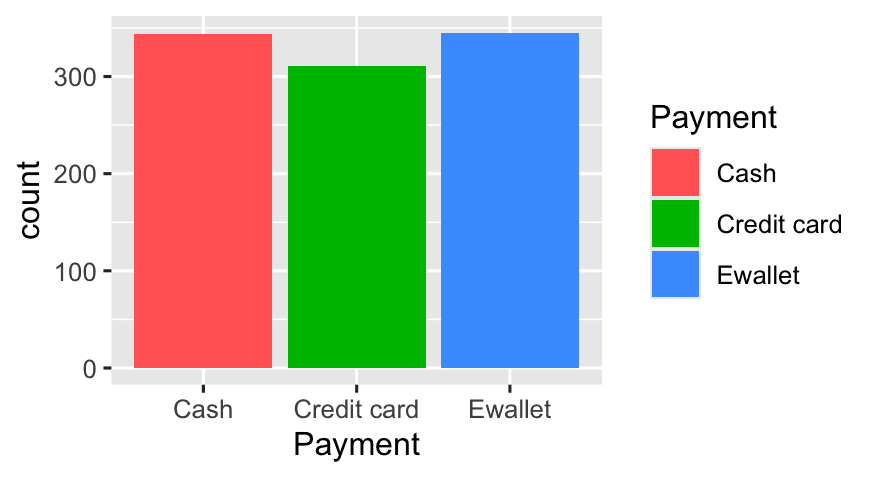
ggplot(df, aes(x = Payment, fill = Payment)) +
geom_bar()| Goal | What you want to do | Correct Syntax |
|---|---|---|
| Use a fixed color (e.g., all bars red) | Not based on data | geom_bar(fill = "red") |
Color based on a data variable (e.g., fill bars by Payment) | Based on a column in your data | aes(fill = Payment) inside ggplot() |
3.2 Product & Customer Insights
- Which
product_lineearns the most revenue?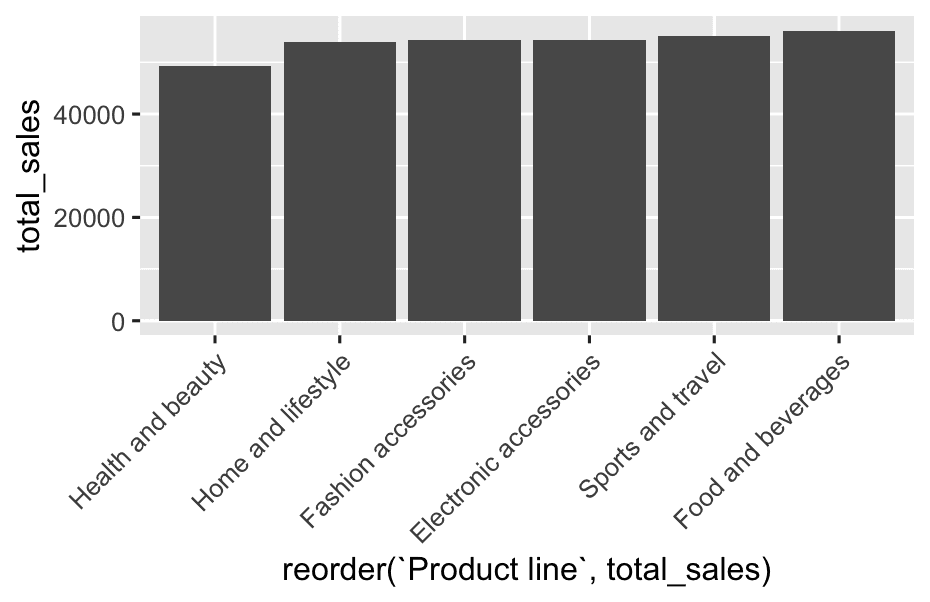
df %>%
  group_by(`Product line`) %>%
  summarise(
    total_sales = sum(Sales)
  ) %>%
  ggplot(aes(x = reorder(`Product line`, total_sales),y = total_sales)) +
  geom_col() +
theme(axis.text.x = element_text(angle = 45,hjust=1))- Are there differences by
gender?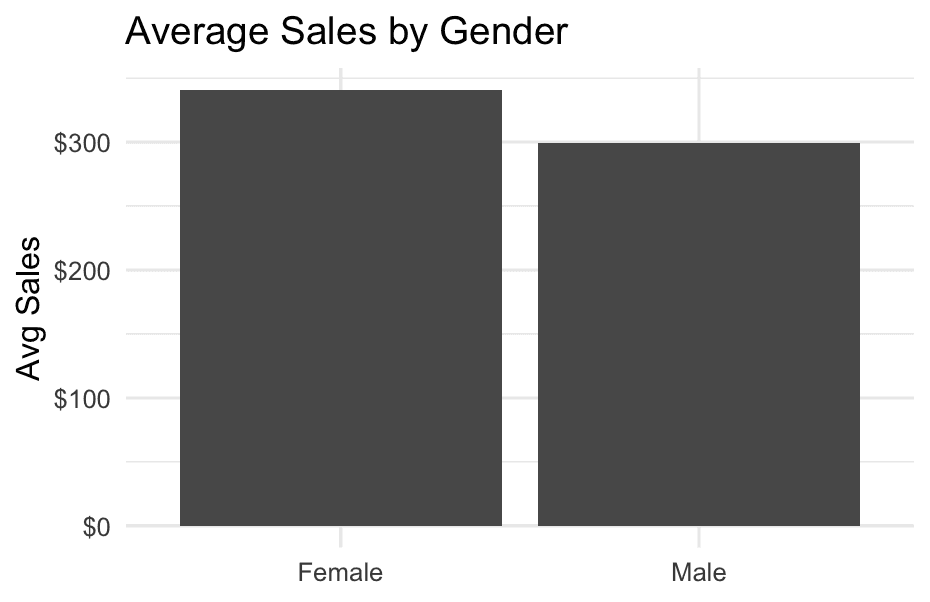
df %>%
  group_by(Gender) %>%
  summarise(
    avg_sales = mean(Sales, na.rm = TRUE)
  ) %>%
  ggplot(aes(x = Gender,y = avg_sales)) +
  geom_bar(stat = "identity")+
  scale_y_continuous(labels = scales::dollar) +
  labs(title = "Average Sales by Gender", y = "Avg Sales", x = NULL) +
theme_minimal()- What’s the relationship between
QuantityandSales?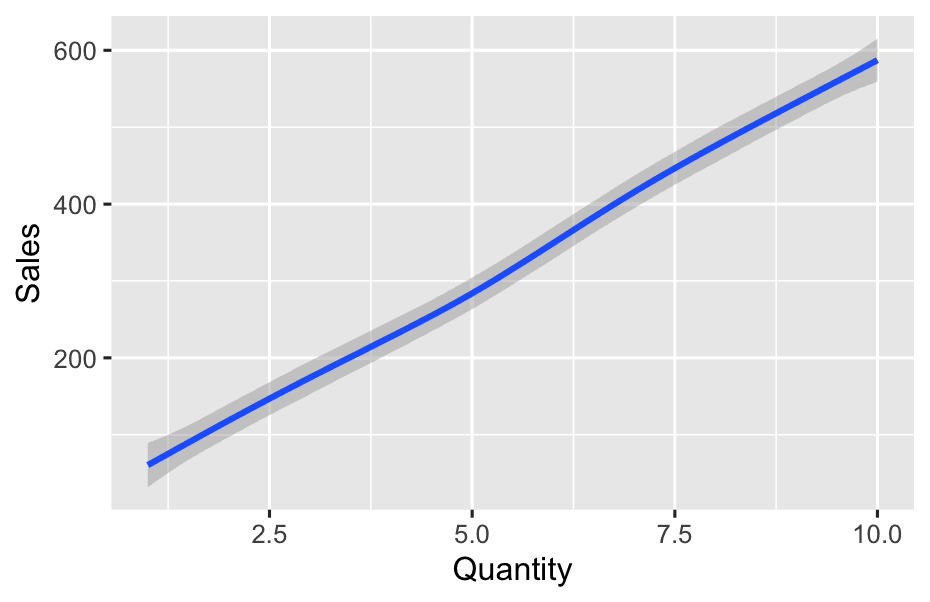
ggplot(df, aes(x = Quantity, y = Sales)) +
  geom_smooth()
3.3 Time Trends
- Which
day_partorhourhas higher sales?
df %>%
  group_by(day_part) %>%
  summarise(
    avg_sales = mean(Sales, na.rm = TRUE)
  ) %>%
slice_max(avg_sales)- Do
weekdaysaffect spending?
Key Concept: geom_bar(stat = "identity")
What it expects:
It needs your data to be already summarized — one row per bar.
But in your code:
ggplot(df, aes(x = weekday, y = Sales)) +
  geom_bar(stat = "identity")
You’re passing the full dataset (df) — not grouped yet.
So R tries to draw one bar per row, and uses the Sales in each row → this gives chaotic results or duplicates.
The Fix: summarise before plotting
Here’s the correct approach:
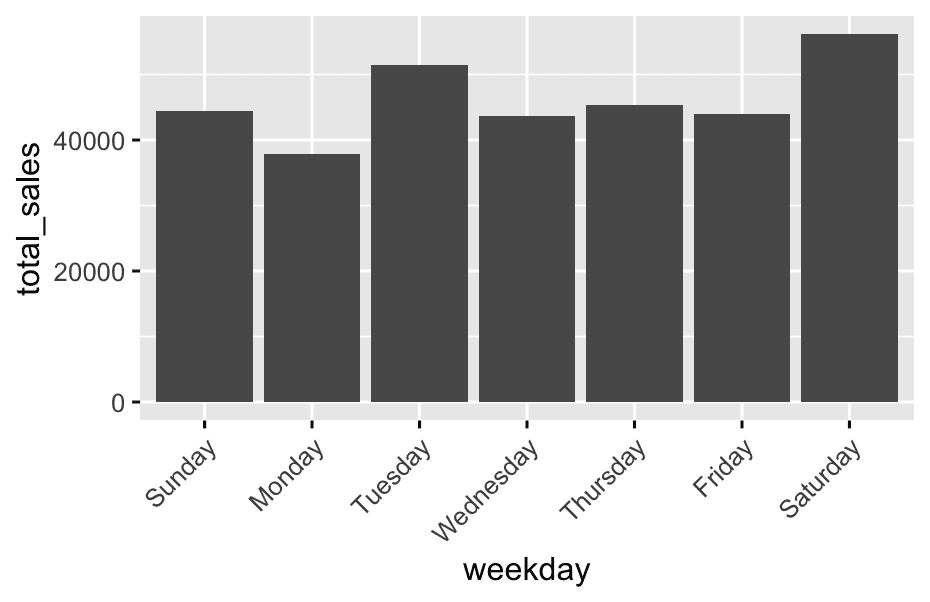
df %>%
  group_by(weekday) %>%
  summarise(total_sales = sum(Sales)) %>%
  ggplot(aes(x = weekday, y = total_sales)) +
  geom_col() +
  theme(axis.text.x = element_text(angle = 45,hjust=1))
This:
-
Groups data by
weekday -
Summarizes into one row per weekday with total sales
-
Passes that clean summary to
ggplot -
Uses
geom_col()to plot bars whereheight = total_sales
✅ geom_col() is just a shortcut for:
“I already summarized my data — use these y-values directly.”
Step 4: Segment the Customers
4.1 By Customer Type (Member vs Normal)
- Is there a difference in preferred product lines or payment method?
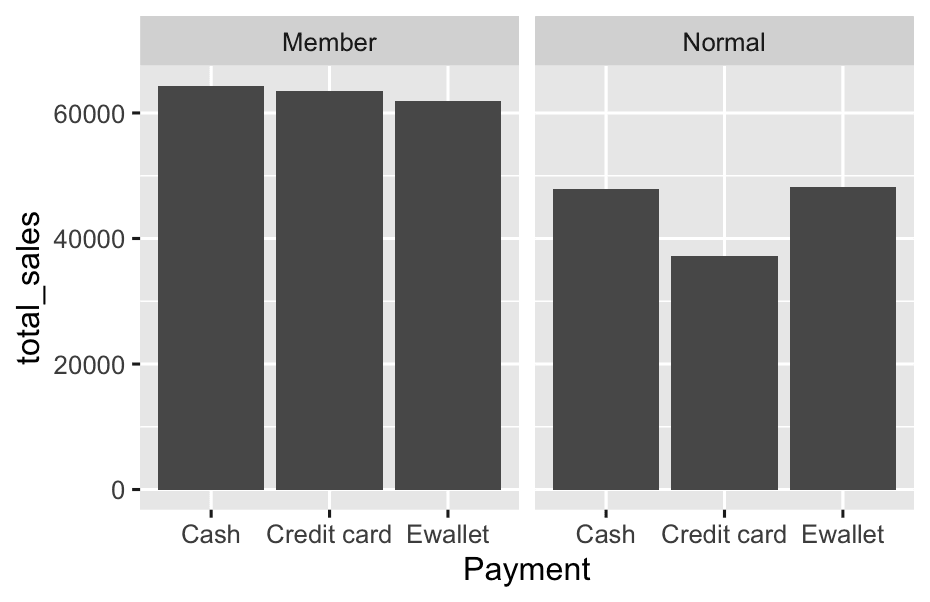
df %>%
  group_by(`Customer type`, Payment) %>%
  summarise(total_sales = sum(Sales), .groups = 'drop') %>%
  ggplot(aes(x = Payment, y = total_sales)) +
  geom_col() +
  facet_wrap(~`Customer type`)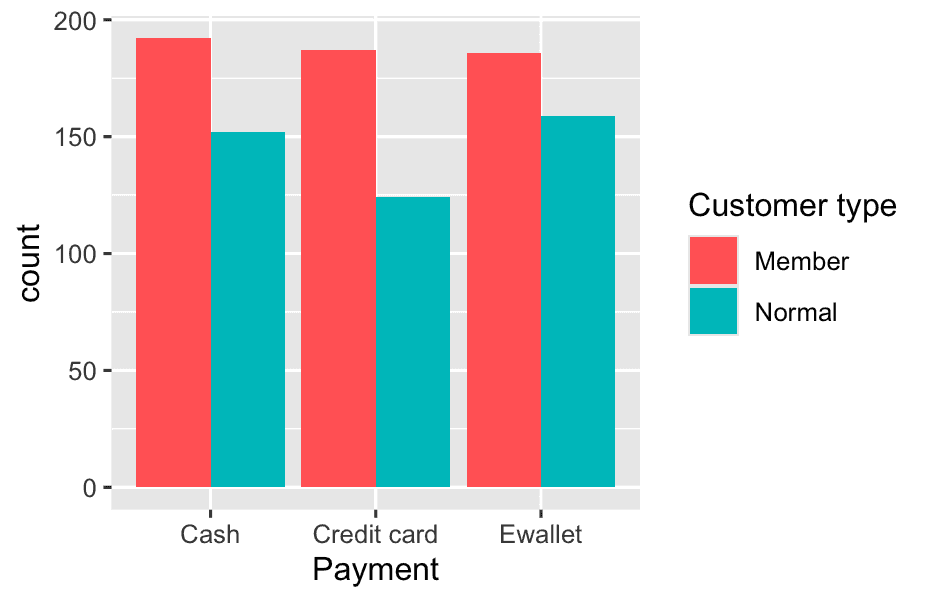
ggplot(df, aes(x = Payment, fill = `Customer type`)) +
  geom_bar(position = "dodge")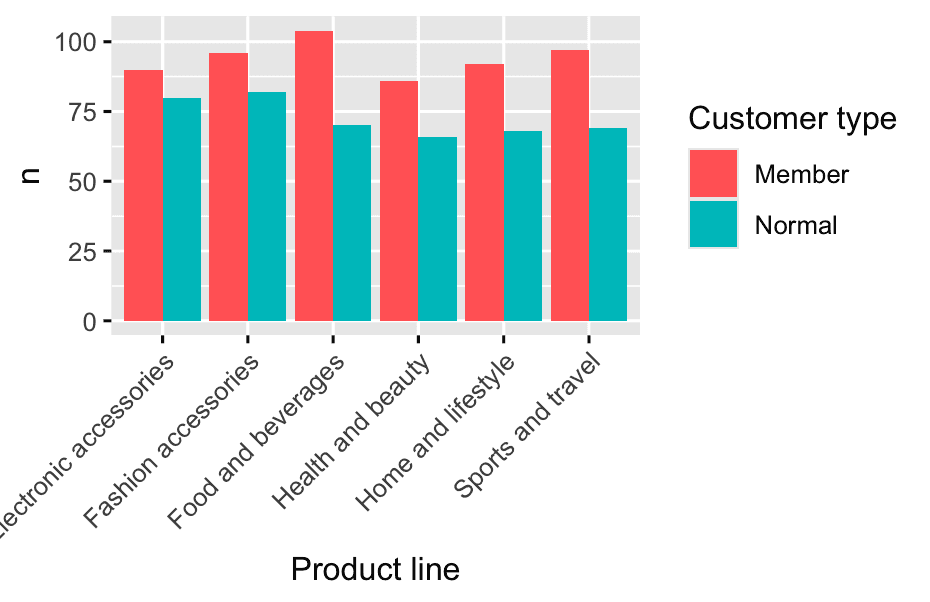
df %>%
  count(`Customer type`, `Product line`) %>%
  ggplot(aes(x = `Product line`, y = n, fill = `Customer type`)) +
  geom_col(position = "dodge") +
  theme(axis.text.x = element_text(angle = 45, hjust = 1))
I made a mistake: You used:
df %>%
  count(`Customer type`,`Product line`) %>%
  ggplot(aes(x = `Product line`, fill = `Customer type`)) +
  geom_bar(position = "dodge")
But geom_bar() with pre-counted data (after count()) defaults to counting the number of rows — not using your actual counts!
Since your summary table already has the counts (n), every bar just shows “1”.
How to fix it:
Use geom_col() instead of geom_bar():
geom_col() uses the height of bars from your n column:
df %>%
  count(`Customer type`, `Product line`) %>%
  ggplot(aes(x = `Product line`, y = n, fill = `Customer type`)) +
  geom_col(position = "dodge") +
  theme(axis.text.x = element_text(angle = 45, hjust = 1))
Now you’ll see the actual transaction count for each product line by customer type.
Key rule:
-
After summarizing/counting: Use
geom_col()withy = n -
Raw data, want counts: Use
geom_bar()
4.2 By Spending Pattern (Low / Medium / High Spender)
- How do “high spenders” behave differently? Do they favor certain products, times, or payment types?
1️⃣ Raw count of high spender transactions by product line
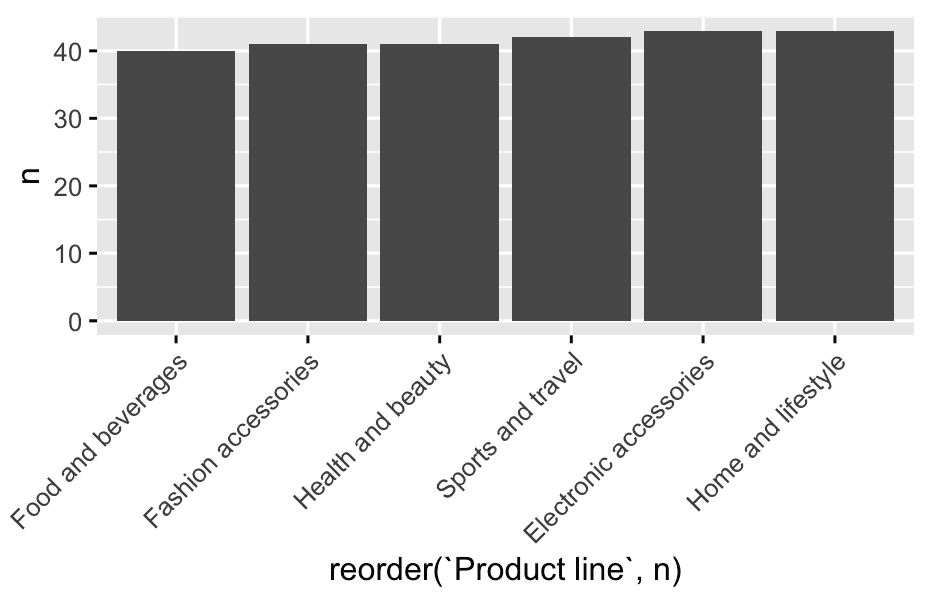
df %>%
  filter(spending_category == 'High_Spender') %>%
  count(`Product line`) %>%
  ggplot(aes(reorder(`Product line`, n),y = n)) +
  geom_col(position = "dodge") +
  theme(axis.text.x = element_text(angle = 45, hjust = 1))
2️⃣ Percentage of high spenders by product line
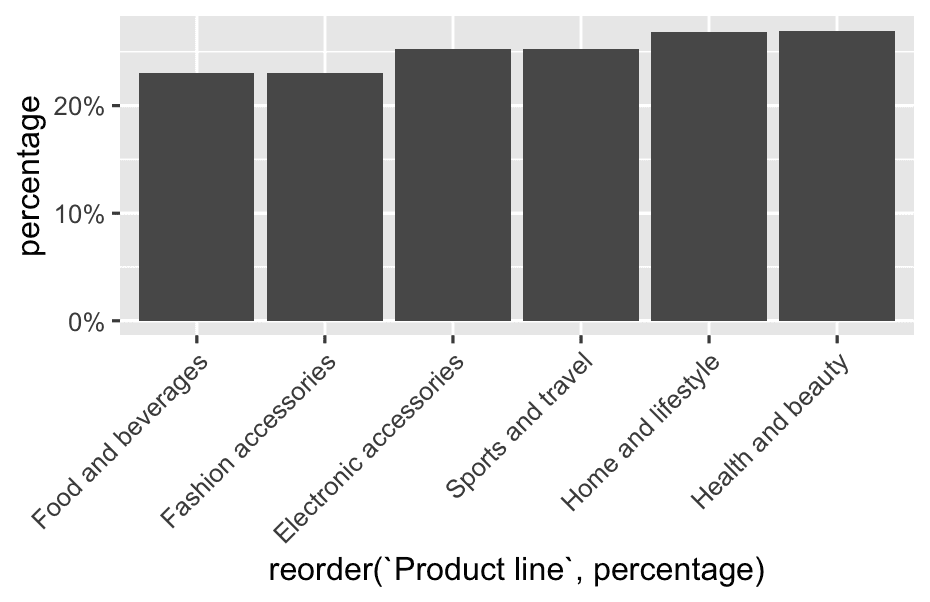
product_totals <- df %>%
  count(`Product line`, name = "total_count")
high_spender_totals <- df %>%
  filter(spending_category == "High_Spender") %>%
  count(`Product line`, name = "high_spender_count")
final_table <- left_join(product_totals, high_spender_totals, by = "Product line")
final_table %>%
  mutate(
    percentage = high_spender_count / total_count
  ) %>%
  ggplot( aes(reorder(`Product line`, percentage), y = percentage)) +
  geom_col() +
  scale_y_continuous(labels = scales::percent_format(accuracy = 1)) +
  theme(axis.text.x = element_text(angle = 45, hjust = 1))
4.3 By Purchase Frequency (Day, Weekday/Weekend)
- Do some customers shop more on weekends?
Number of Transactions: Weekend vs Weekday:
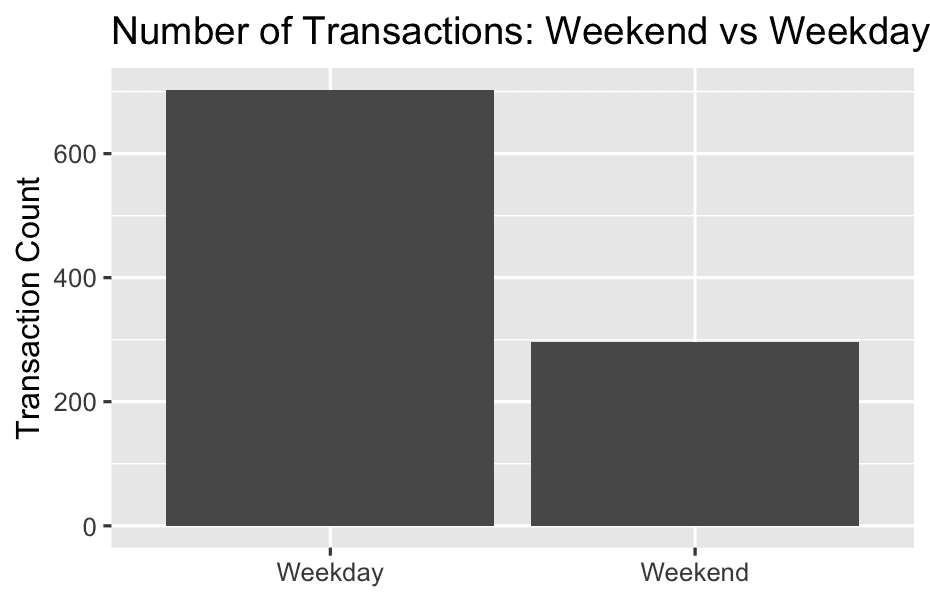
df <- df %>%
  mutate(
    weekpart = case_when(
      weekday == 'Saturday' | weekday == 'Sunday' ~ "Weekend",
      TRUE ~ "Weekday"
    )
  )

df %>%
  count(weekpart) %>%
  ggplot(aes(x = weekpart, y = n)) +
  geom_col(position = "dodge") +
  labs(
    title = "Number of Transactions: Weekend vs Weekday",
    x = NULL,
    y = "Transaction Count"
  )
TRUE ~ "Weekday"
For all other rows, set weekpart to "Weekday".
Average Sales per Transaction: Weekend vs Weekday:
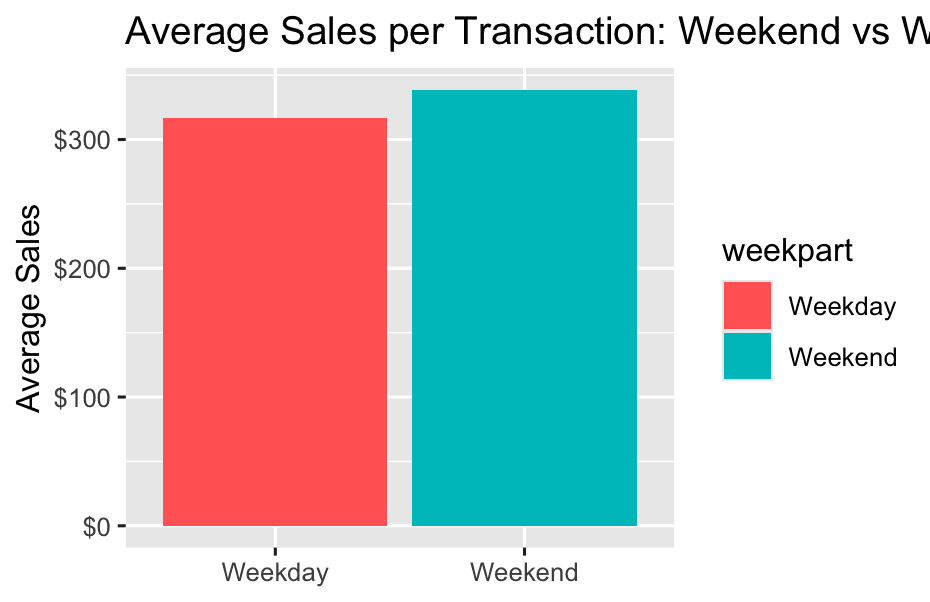
df %>%
  group_by(weekpart) %>%
  summarise(avg_sales = mean(Sales, na.rm = TRUE)) %>%
  ggplot(aes(x = weekpart, y = avg_sales, fill = weekpart)) +
  geom_col() +
  scale_y_continuous(labels = scales::dollar) +
  labs(
    title = "Average Sales per Transaction: Weekend vs Weekday",
    x = NULL,
    y = "Average Sales"
) - Are high spenders more “weekend” or “weekday”?
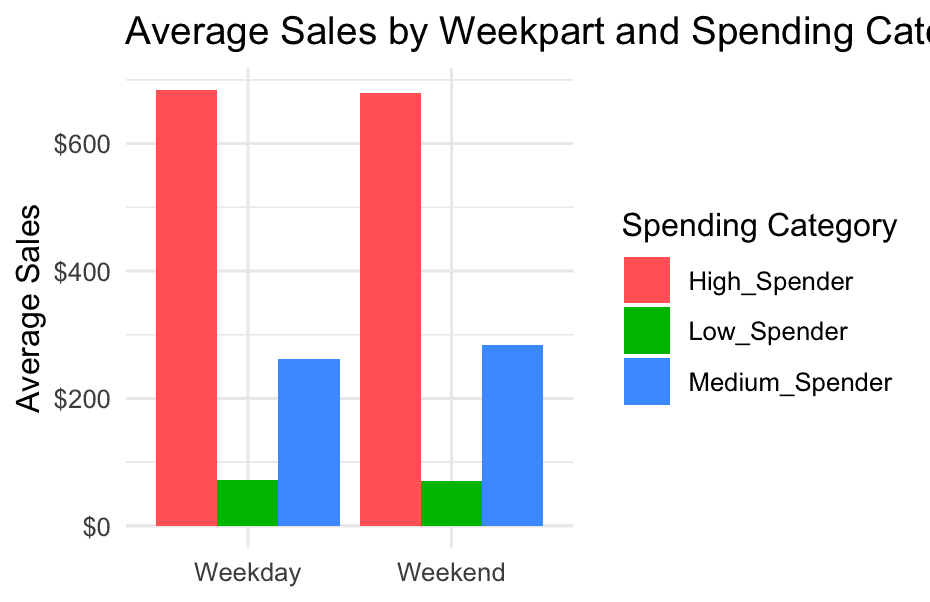
df %>%
  group_by(weekpart, spending_category) %>%
  summarise(avg_sales = mean(Sales, na.rm = TRUE)) %>%
  ggplot(aes(x = weekpart, y = avg_sales, fill = spending_category)) +
  geom_col(position = "dodge") +
  labs(title = "Average Sales by Weekpart and Spending Category", x = NULL, y = "Average Sales") +
  scale_y_continuous(labels = scales::dollar) +
  scale_fill_discrete(name = "Spending Category") +
  theme_minimal()